
Troubleshooting Zoom Audio and Video Issues on Windows
If your microphone, speakers, or camera are not working in Zoom, try the steps below in order.
Step 1: Check Zoom Audio & Video Settings
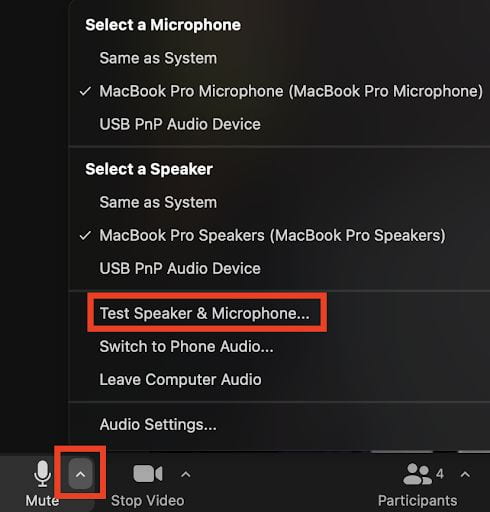
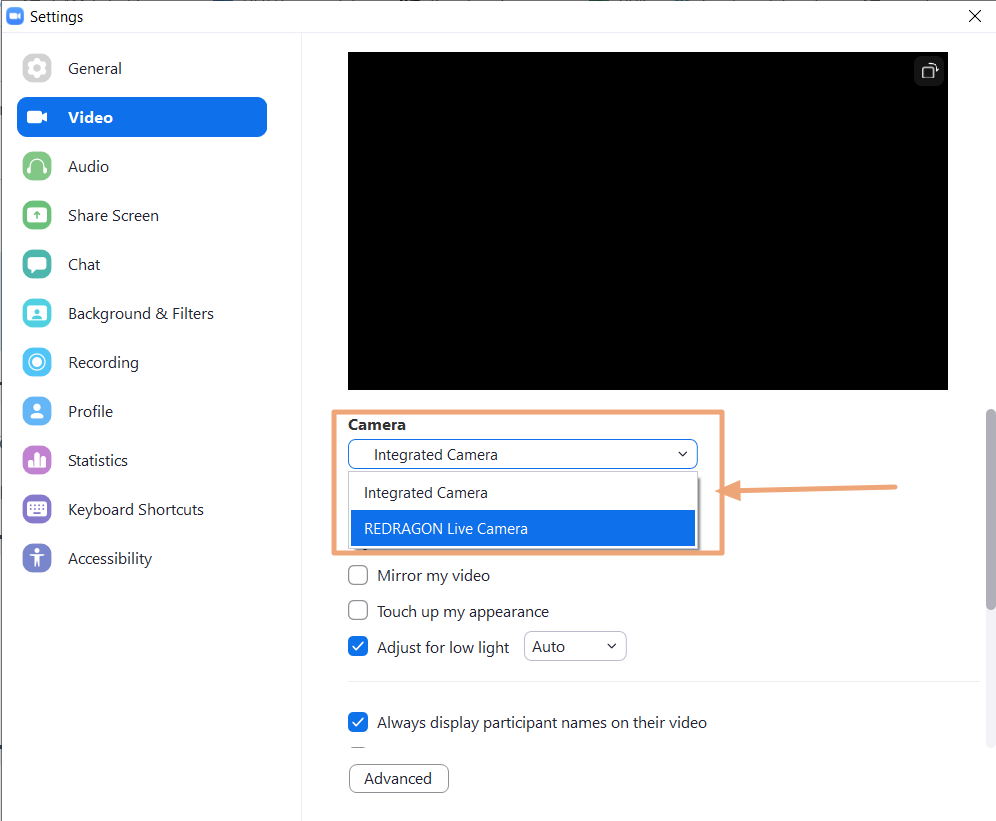
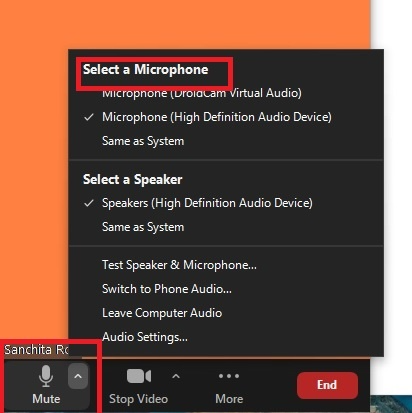
Open Zoom.
Click the gear icon (Settings).
Select Audio:
Click Test Speaker
Click Test Mic and speak
Confirm the correct microphone and speaker are selected
Select Video:
Confirm the correct camera is selected
Make sure you see a preview image
Step 2: Check Windows Sound Settings
Right-click the speaker icon in the system tray.
Select Sound settings.
Confirm the correct Input (microphone) and Output (speakers/headphones) are selected.
Make sure the volume is turned up and not muted.
Step 3: Check Windows Camera Permissions
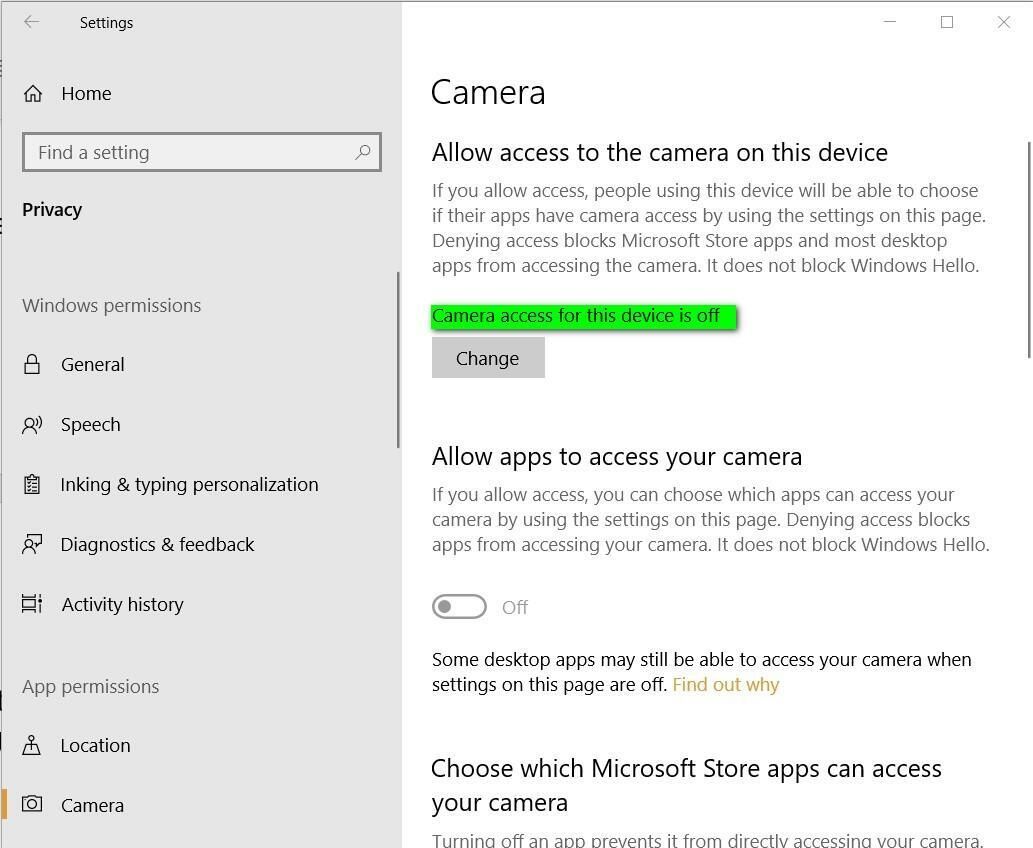
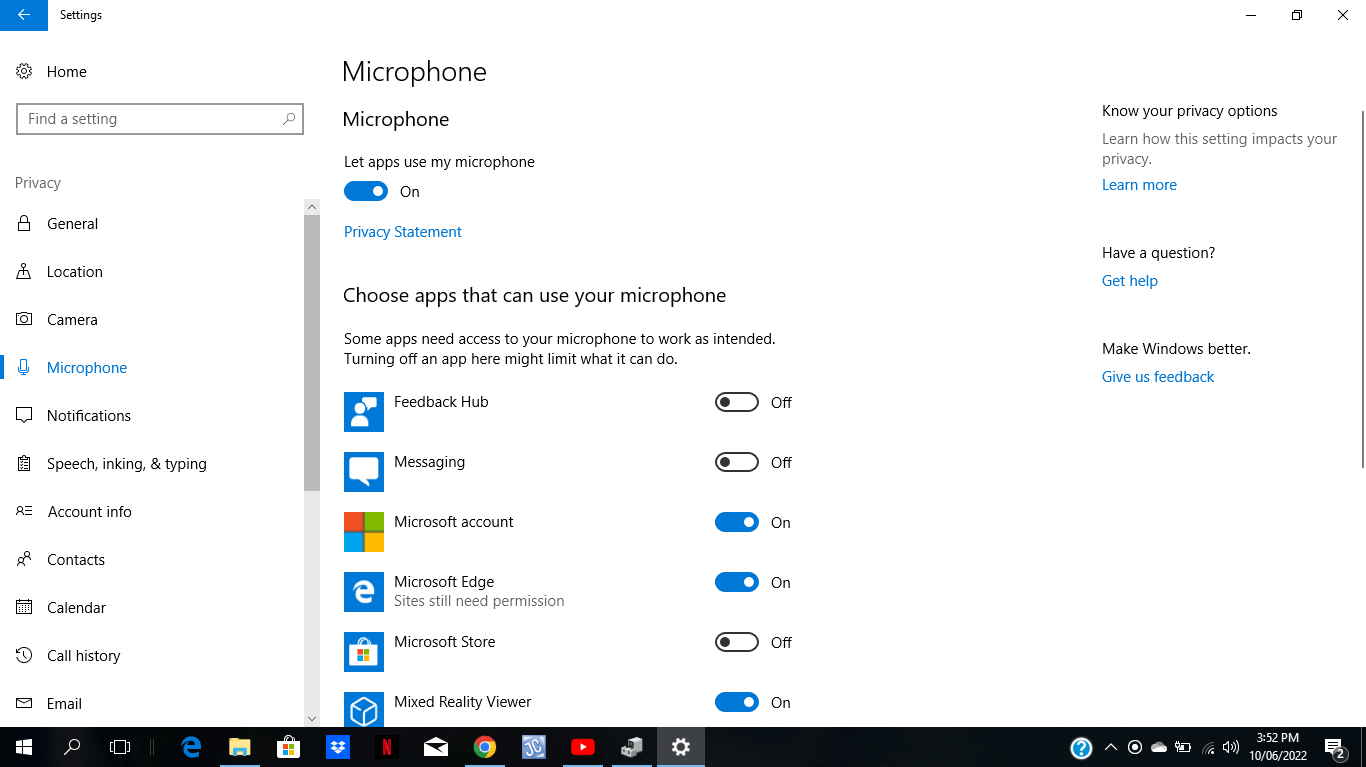
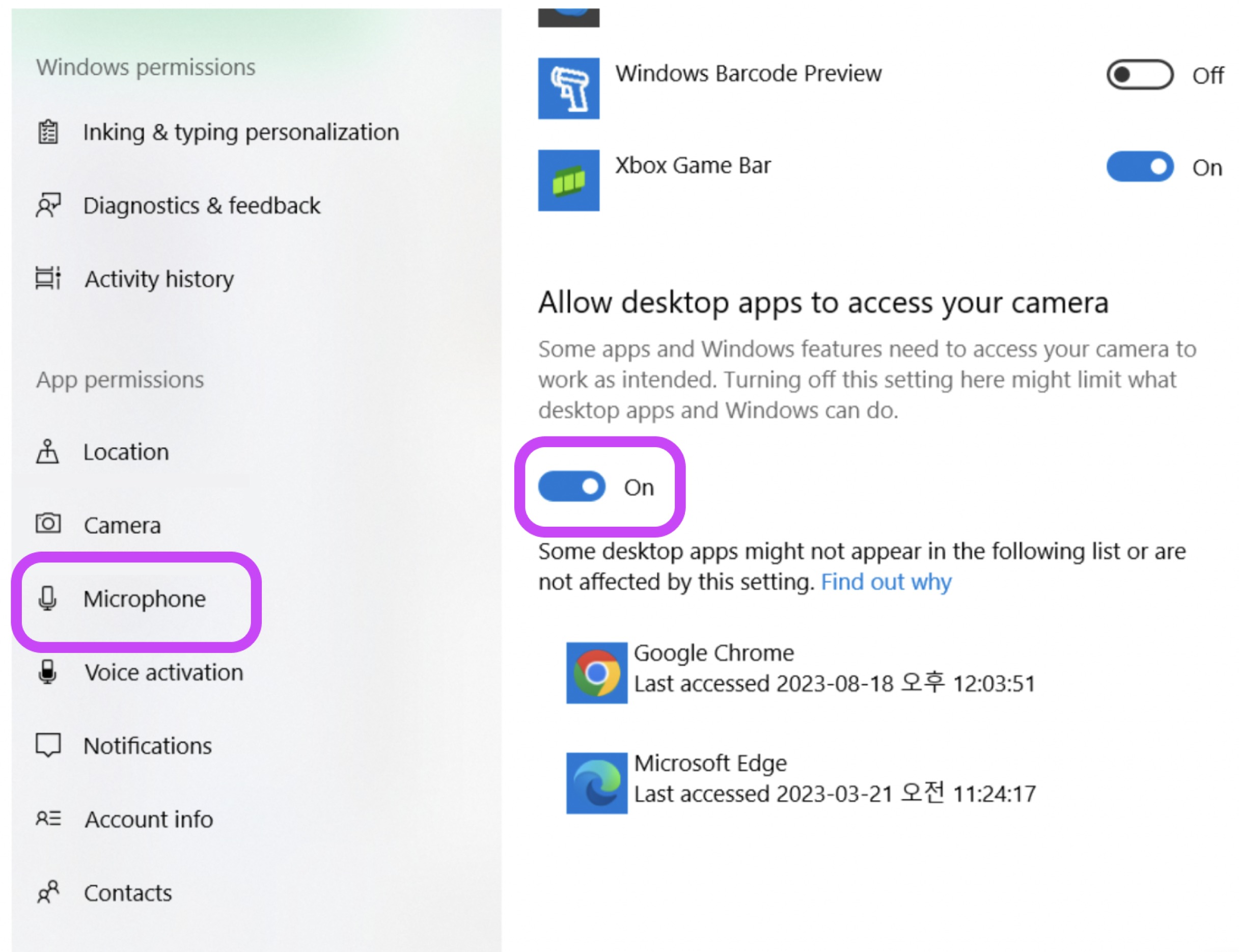
Open Settings → Privacy & security.
Click Camera:
Make sure Camera access is ON
Make sure Let desktop apps access your camera is ON
Click Microphone:
Make sure Microphone access is ON
Make sure Let desktop apps access your microphone is ON
Step 4: Check for Physical Mute or Camera Covers
Make sure your webcam is not covered
Check for a keyboard mute key or headset mute switch
Disconnect and reconnect USB headsets if used
Step 5: Close Other Apps Using Audio or Video
Close apps like Teams, Google Meet, WebEx, or camera apps
Only one app can use the camera at a time
Step 6: Restart Zoom or Your Computer
Close Zoom completely.
Reopen Zoom and try again.
If issues continue, restart your computer.
Step 7: Update Zoom
Open Zoom.
Click your profile picture.
Click Check for Updates.
Install updates if available.
When to Contact IT Support
Contact IT if:
Your camera or microphone does not appear in Zoom
Audio/video works in other apps but not Zoom
You see repeated error messages
Helpful Tip
Test your setup before meetings at:
https://zoom.us/test