
Which App Should I Use?
Apple Mail → Simple, built-in, basic email
Outlook app → Best for calendars, shared mailboxes, and notifications
Set Up SBCOE Office 365 Email on an iPhone (Apple Mail App)
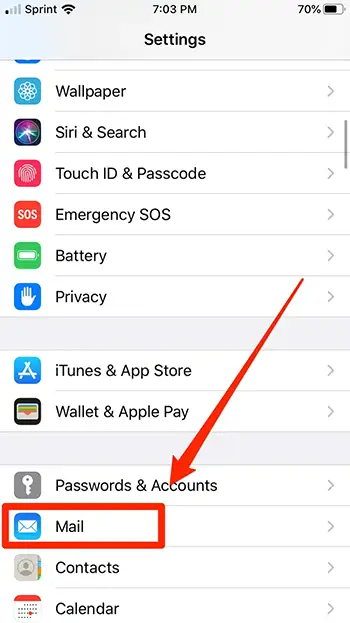
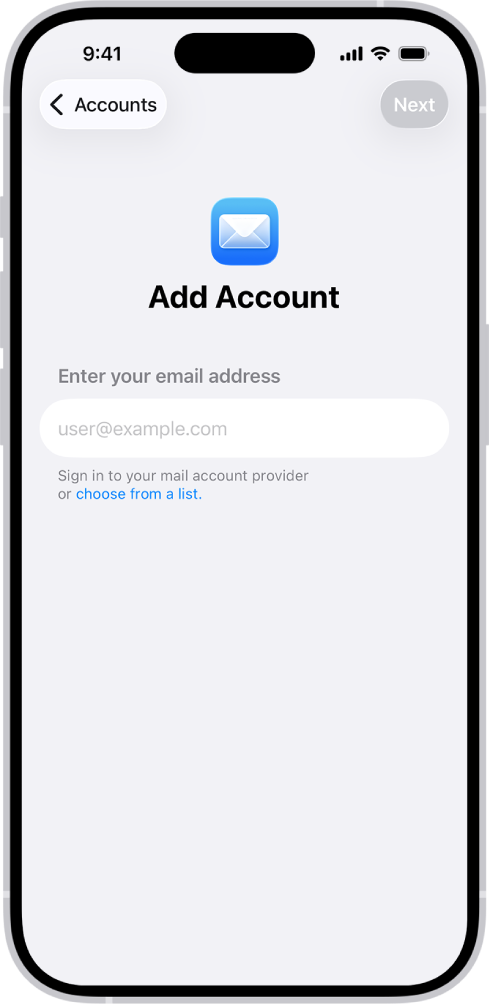
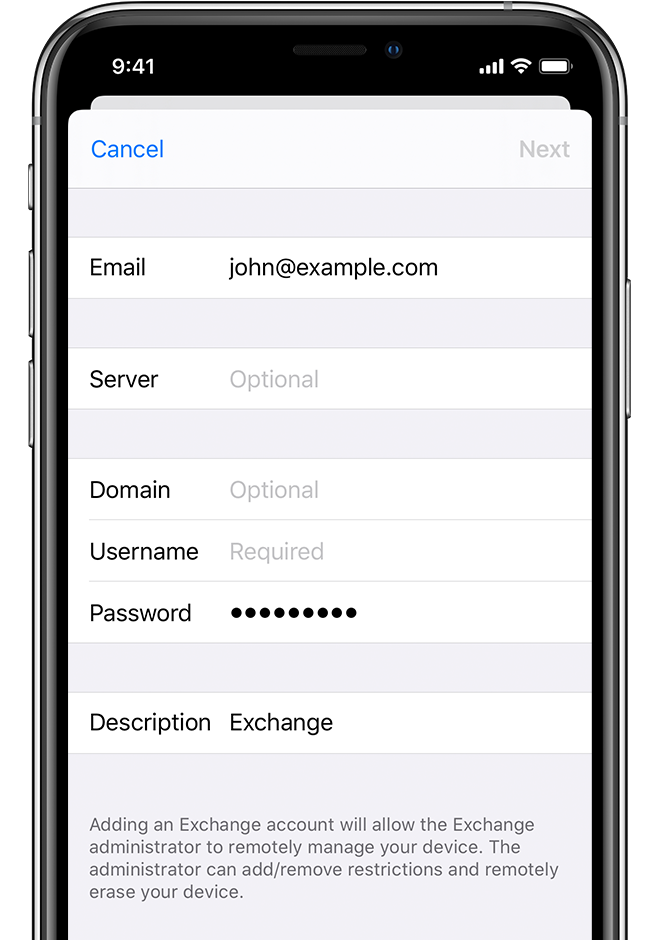
Use these steps to add your SBCOE email to the built-in Mail app on your iPhone.
Steps
Open Settings on your iPhone.
Tap Mail → Accounts → Add Account.
Select Microsoft Exchange.
Enter your SBCOE email address (example:
username@sbcoe.org).Tap Next, then select Sign In.
Sign in using your SBCOE password.
Choose what to sync:
Mail (required)
Contacts, Calendars, Reminders (optional)
Tap Save.
Your SBCOE email will now appear in the Mail app.
If You Have Issues
Restart your iPhone and wait a few minutes
Confirm you entered your email address correctly
Set Up SBCOE Office 365 Email on an iPhone (Outlook App)
You can also access SBCOE email using the Microsoft Outlook app.
Step 1: Install Outlook
Open the App Store.
Search for Microsoft Outlook.
Install the app.
Step 2: Add Your SBCOE Account
Open the Outlook app.
Tap Get Started (or Add Account).
Enter your SBCOE email address.
Tap Continue.
Sign in with your password.
Outlook will automatically configure your account.
Optional Settings
Enable notifications for new email
Add calendar access if prompted
Customize focused inbox if desired
If You Have Issues
Make sure the Outlook app is updated
Try closing and reopening the app