
Note: This KB applies to the sites using PBXact/FreePBX based telephone systems (COE, ECE, SAHS/SAOS, NCJUSD, Southside and Tres Pinos)
On your desk phone:
- Press the button with an envelope icon (alternatively dial *97)
- You will be prompted for your voicemail password. If this is the first time accessing the mailbox or if you have not changed your password the default password is the extension number twice.
- Press 0 to set mailbox options:
- Press 1 to record unavailable message (incoming call goes unanswered)
- Press 2 to record busy message (incoming call goes unanswered while line is in use)
- Press 3 to record name
- Press 4 to manage temporary greeting
- Press 5 to change password
- Press * when finished to return to the main menu
Access Voicemail Remotely:
- Submit a ticket to support@sbcoe.org to ensure remote access is turned on for your voicemail
- Dial in to the main number at your site.
- Dial your extension
- When you hear your voicemail greeting dial *
- You will be prompted for your voicemail password, enter it
- You should now be connected to your voicemail box. Follow the prompts to access your voicemail.
Access Voicemail from your PC (On-site only, SBCOE and NCJUSD only):
- Submit a ticket to support@sbcoe.org to request your login password
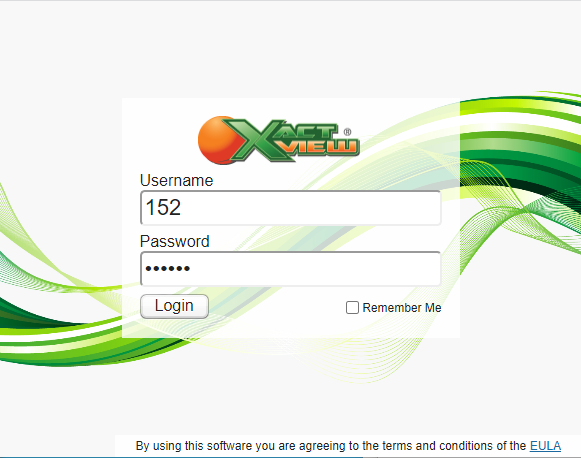
- Access the voicemail portal login page:
- SBCOE sites: http://205.155.232.7:58080/client/client
- NCJUSD: http://205.155.234.2:58080/client/client
- At the login screen enter your extension in the login field and the provided password in the password field. Then click Login.
- After logging in locate the voicemail that you wish to listen to in the bottom right corner of the screen.
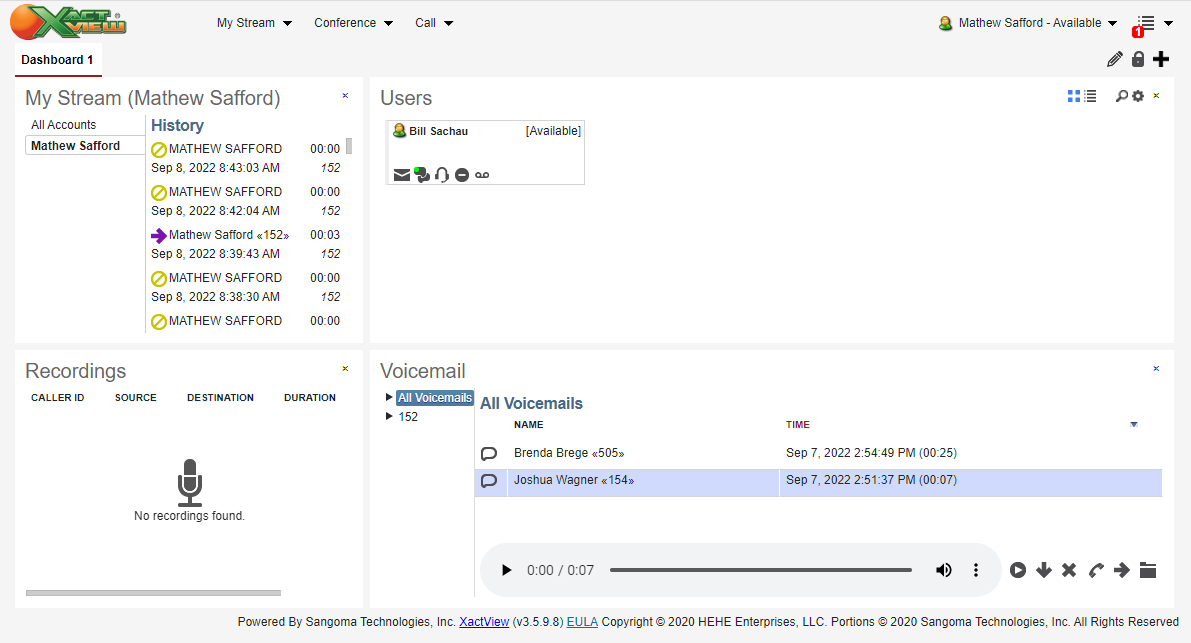
You have the option to listen to the selected voicemail on your computer through your browser, listen to the voicemail on your desk phone, download a copy of the file to your PC, delete the voicemail or move/forward it.